
3. Upgrading placeholder colors
By SkySaac Published at 2025-02-09
What the frick are "placeholder" colors?
The MOCs I make often don't have any interior details. On normal rockets the insides contain tanks, fuel avionics and more. As the scale I make my rocket and spacecraft MOCs in is often quite small, adding these things as details is just not feasible. The insides of the MOCs instead are filled with bricks that hold the whole structure together and that allow for the building techniques and details on the outside to be as good as they can be. When one wants to build such a MOC in real life though, the insides are never to be seen again once the MOC is build. So it wouldn't matter if those parts would have whatever color, for example the color of the bricks one might still have lying around at home. The question is what color should I give those bricks in the MOC itself, as I do want people to be able to see and differentiate easily, which parts are important to have the in the correct color and which can just be whatever color.
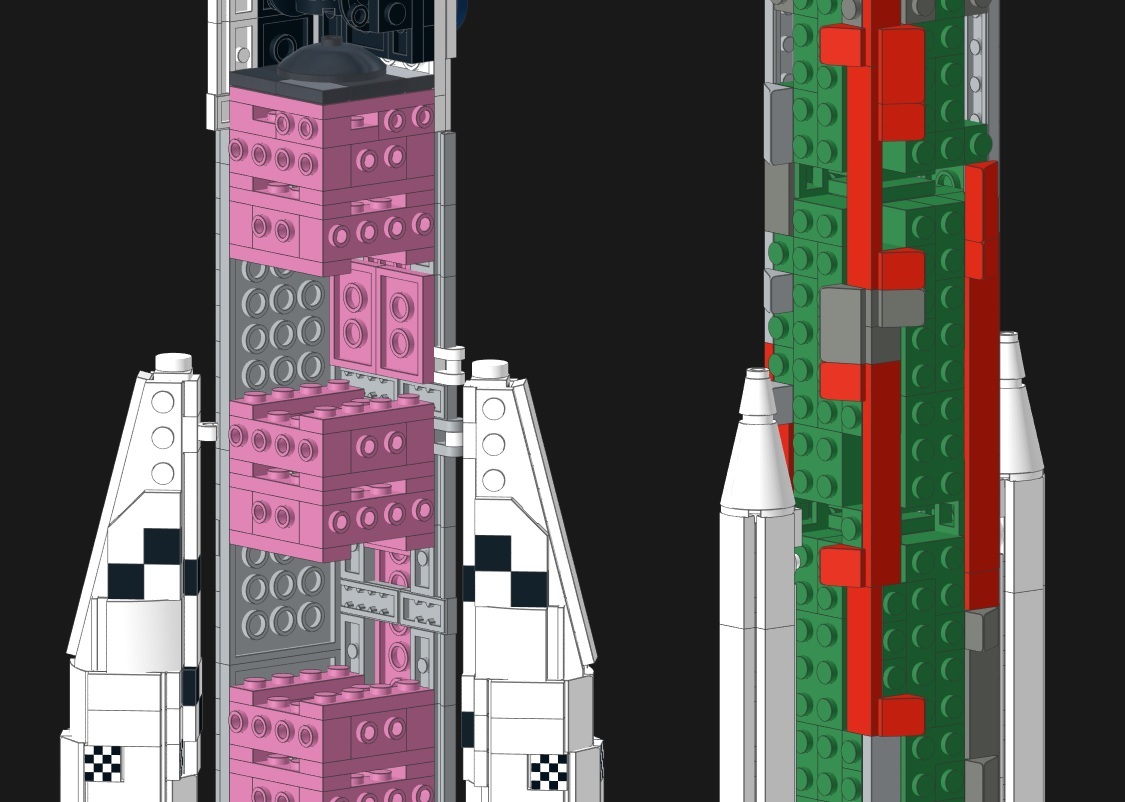
The placeholder colors I used in some of my older MOCs
How I used placeholder colors for my MOCs so far
So far I have handled this problem by choosing a color for each MOC that doesn't exist on the outside, for example I often used green and dark pink. I then wrote to the page of the MOC on my website which color the placeholder color for the specific MOC is. In the instructions I also added small remarks at the end which bricks color is just the placeholder. While that works quite well it does pose some small annoyances with Bricklink, which quite a few people buy the brick from. As the parts often are not available in the placeholder color and so when importing one of my MOCs into Bricklink or uploading the .xml file from the part list export feature there, changing all the bricks in the placeholder color to a cheap available color or into the "Not applicable" color that Bricklink provides (and that basically tells it to just be any color) can be quite tedious. Changing all the parts in the .io file and then uploading it onto Bricklink, or first uploading to Rebrickable and then back to Bricklink can be quite annoying too. Studio does have a feature to change a parts color into the cheapest available color there is, which is quite cool, but that's not something I want to rely on either. I don't want to use it as it then again does not allow you to see which part then again can be of any color and that would be quite annoying for people not buying their bricks via Bricklink but from other platforms. So I added a feature some time ago that, when exporting the .xml or .csv part list from my MOCs, would replace all parts in the placeholder color automatically to have the "Any Color" color instead.
The new changes on this website
As I recently found out that custom colors can be added to Studio, I decided that from now on I stop using the normal placeholder colors I used until now. Instead I would use the "Any Color" color directly in Studio so that when someone uploads the .io file directly one would also have the parts automatically be in "Any Color" in the Bricklink/Rebrickable list. And so starting from now on all new and updated MOCs will have that as the color for the inner parts. For you who hasn't added a custom "Any Color" color to Studio (as that is not an available feature sadly) these parts will show up as a deep black, but don't worry you will be able to differentiate between the normal black parts and these "Any Color" parts, as the Blacks in Studio do look different. If you add the color to Studio yourself you can make these look however you want, I for example used a shade of pink.
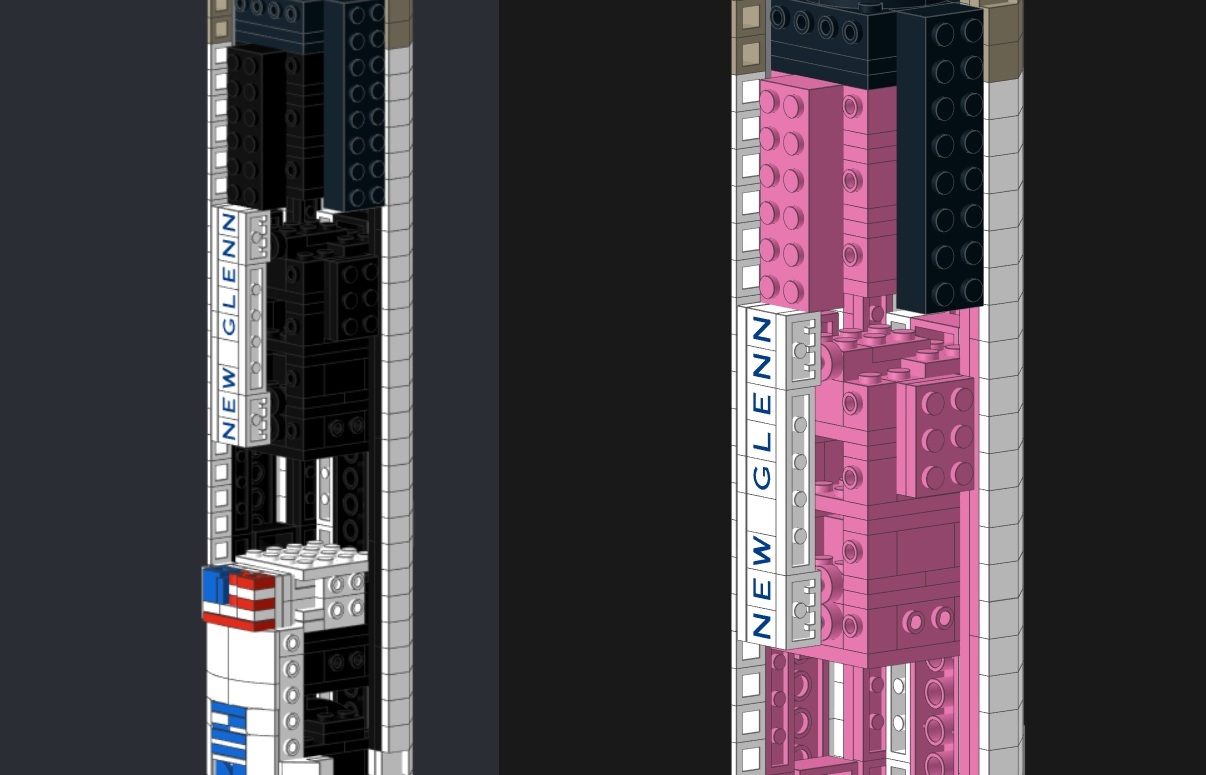
Left: How "Any Color" looks to you Right: How it looks when you have added the color to Studio
The files I used are downloadable below, in case you wish to be able to use "Any Color" in Studio as well.
The new export settings
As a lot of older MOCs still have green and dark pink as placeholder colors, I decided to also add a new feature to the site that replaces all the placeholder colors with a chosen color for the file export. The feature can be found underneath the files section if you click on "Export Settings". There you can choose any color you want and the placeholder colors in the part list will automatically be changed to that color if you export it then. I removed the automatic replacement from placeholder color to "Any Color" that I had as a feature before, instead you can also choose "Any Color" as a replacement color from the list of all available colors. But don't forget to press Save before you export and keep in mind that it does not work for the .io files, just for the .xml and .csv ones!
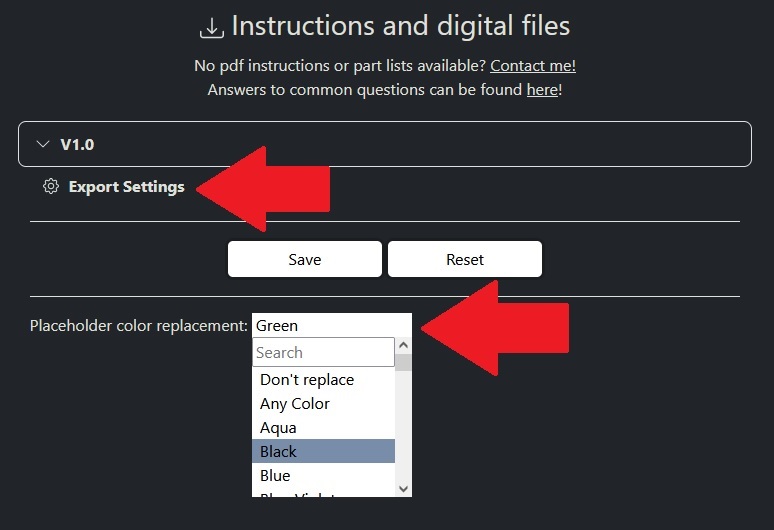
The export settings are accessible below the download section
And that's a wrap for this blog, as always I you have any ideas for new or updated features or any questions, feel free to send me an email or contact me through social media :)
Comments